
How to create a Squarespace duplicate website
Learn how to safely create a Squarespace duplicate website, whether you’re testing a redesign, cloning a site for a new project, or experimenting with layout changes. Duplicating your Squarespace website gives you a backup to work on without affecting your live site.
Written by Mikkel Calmann
Sep 26, 2025

Why duplicate a Squarespace website?
Sometimes you need to make big changes to your site but don’t want to risk breaking the live version. That’s where creating a Squarespace duplicate website comes in handy.
A duplicate site allows you to:
Test a new design safely before publishing.
Experiment with different layouts or templates.
Clone your website for a new project or client.
Keep a backup copy in case something goes wrong.
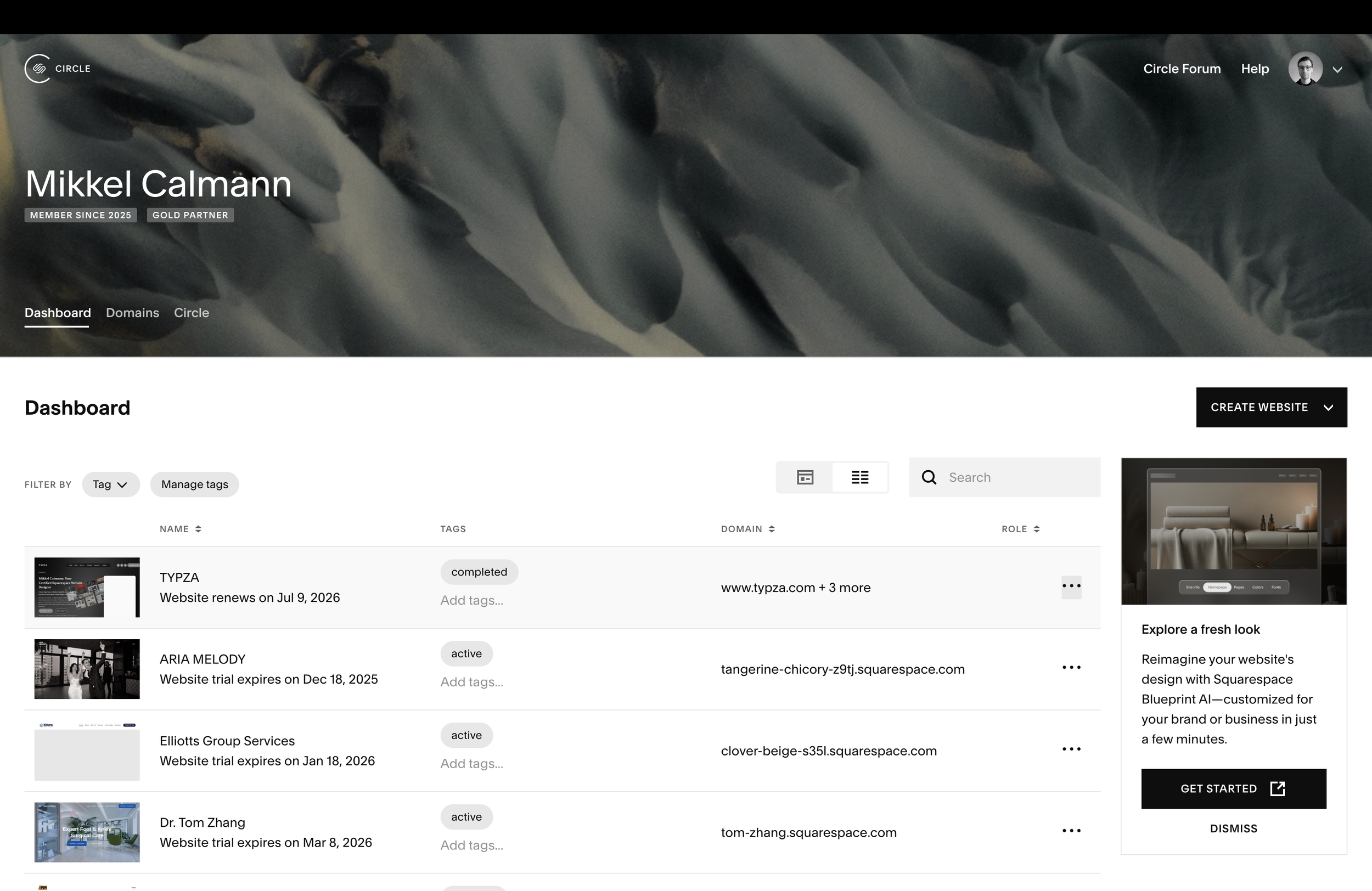
How to create a Squarespace duplicate website
Squarespace doesn’t have a one-click “duplicate entire website” button, but there are effective ways to create a copy of your site. Here’s how:
1. Duplicate individual pages
Squarespace allows you to duplicate pages within the same site.
Go to Pages in your dashboard.
Hover over the page you want to copy.
Click the settings gear icon → Duplicate Page.
This is useful if you only need to copy a layout or design pattern.
2. Use Squarespace’s export feature
You can export your site content (like pages, blog posts, and galleries) into a file, then re-import it into a new Squarespace site.
Go to Settings → Advanced → Import/Export.
Export your content.
Create a new Squarespace site and import the file.
Note: Not everything transfers perfectly—some features (like store products or custom CSS) may need to be re-added manually.
3. Clone a site manually
If you’re starting a new project but want the same design as an existing site, you can:
Create a new trial site.
Rebuild it using the same template, fonts, styles, and layouts.
Copy over content, images, and settings.
This takes more time but ensures you have a clean, fresh copy without old data or errors.
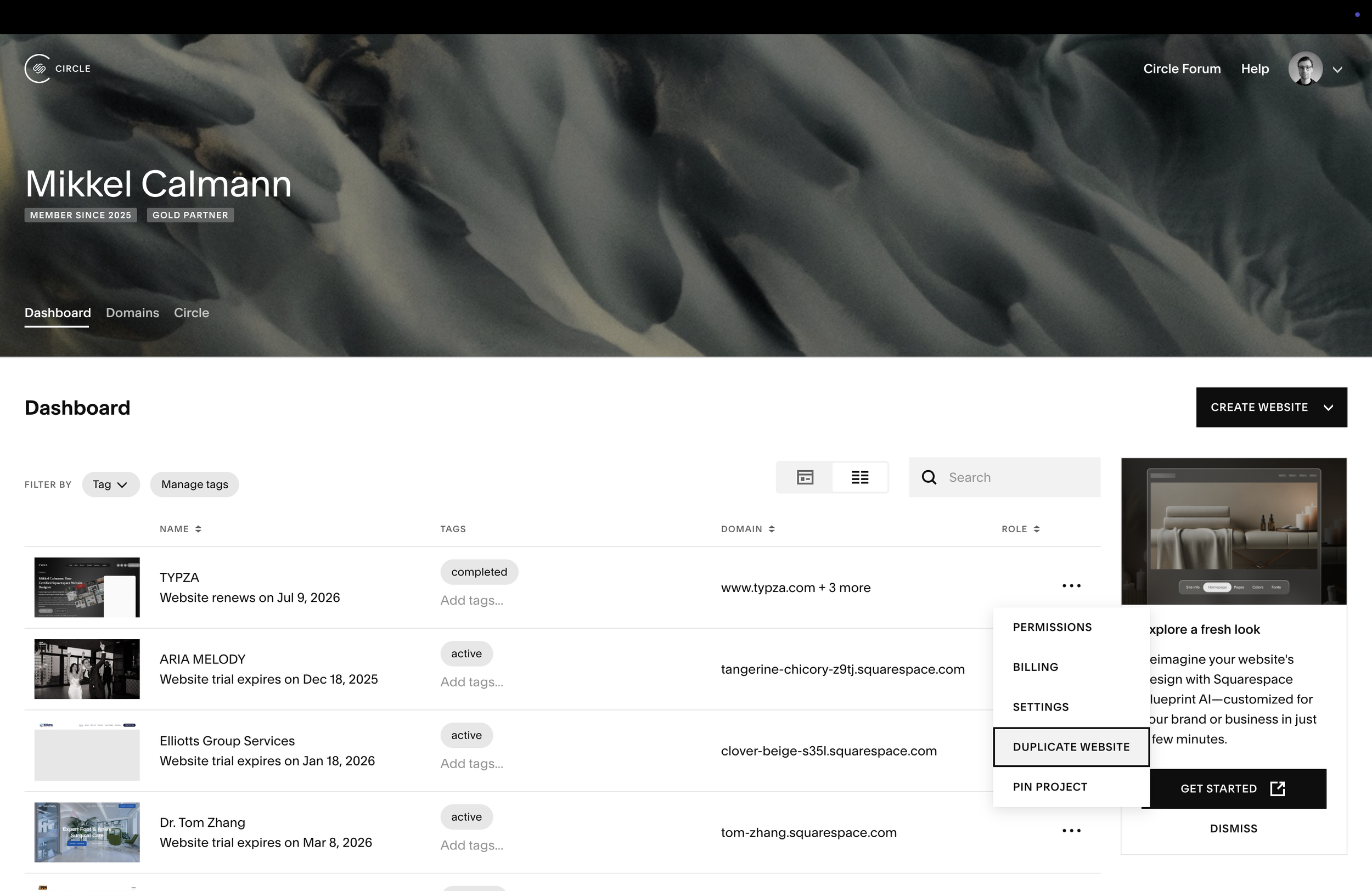
Best practices when creating a Squarespace duplicate website
Document custom settings like CSS, colors, and fonts so you can easily reapply them.
Check links and navigation after duplicating to ensure everything works.
Update SEO settings (titles, descriptions, slugs) to avoid duplicate content issues.
Keep the duplicate site private until it’s ready to go live.
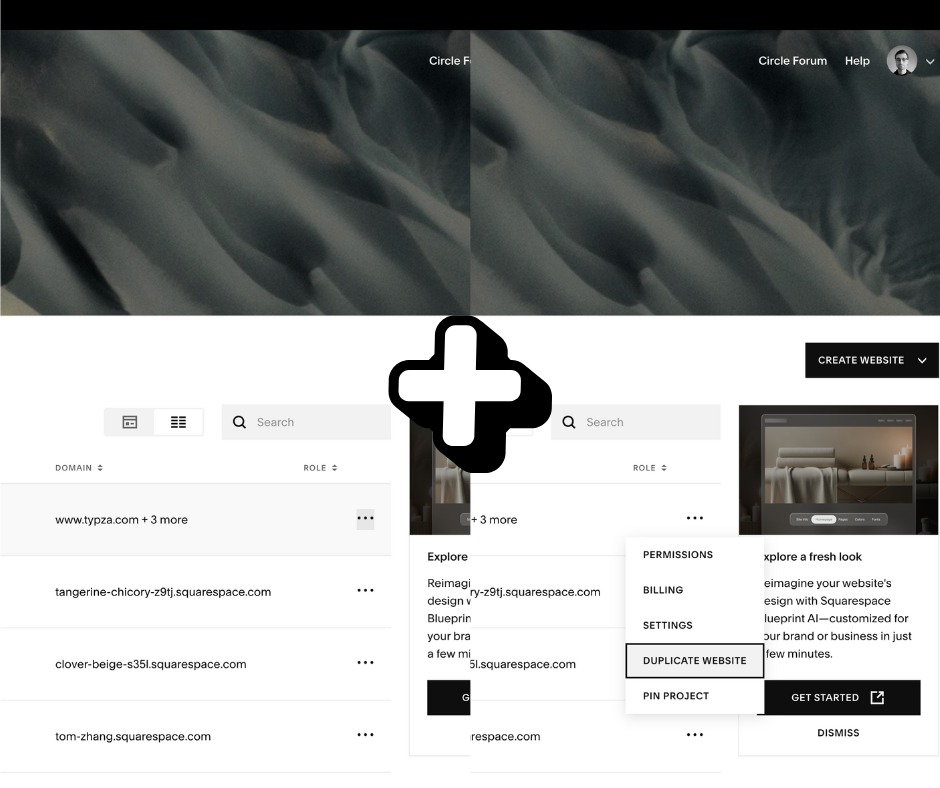
Short recap: duplicating your Squarespace site the smart way
Creating a Squarespace duplicate website is a smart move if you’re planning a redesign, starting a new project, or want a safe testing ground. While Squarespace doesn’t offer a one-click solution, you can duplicate pages, export/import content, or manually clone your setup.
By following best practices, you’ll ensure your duplicate site works smoothly and helps you experiment without risking your live website.
Flexible custom packages.
Three tiers scoped for where you are and where you're going. Not sure which fits? Book a call — we'll go over your project together and make sure you land on the right one.
Launch build
Look credible, fast.
$2,500starting from
A focused, conversion-aware website that gives you confidence sharing your link anywhere.
- Up to 4 structured pages
- 1 focused revision round
- Fully mobile-optimised
- SEO foundations included
- Launch-ready in 3 weeks
- 30 days email support
Best for businesses launching or replacing an outdated site.
Start your projectAuthority build — Most popular
Elevate your brand.
$4,000starting from
A refined, strategically designed website that positions your business as established and credible.
- Everything in Launch, plus:
- Up to 7 pages
- Custom styling & layouts
- 2 revision rounds
- Blog integration
- 5-week build timeline
- Training walkthrough
Best for growing businesses that want their site to reflect their expertise.
Start your projectScale build
No limits. Full depth.
$8,000starting from
A fully bespoke build with advanced functionality, custom code, and no artificial constraints.
- Everything in Authority, plus:
- Unlimited pages
- Unlimited custom code
- Unlimited revisions
- Plugin costs covered
- Priority support
- Complete SEO setup included
Best for established businesses investing in a long-term digital foundation.
Start your project
Mikkel Calmann
I’m Mikkel Calmann, a certified Squarespace designer and Circle Member. We’ve worked with businesses of all sizes, crafting strategic websites that look great and perform even better. If you’d like to discuss a project, feel free to email us at mikkel@typza.com or reach out to us here. You can also book a free 15-minute consultation here.