
Squarespace 7.1 tutorial: Step-by-step guide for business owners
Learn how to build your website with this Squarespace 7.1 tutorial. Follow our step-by-step guide for choosing a plan, selecting a template, customizing pages, and publishing your business site.
Written by Mikkel Calmann
Nov 3, 2025

Why this Squarespace 7.1 tutorial matters
If you’ve heard about Squarespace 7.1, you’ve likely seen it described as the most powerful and flexible version of the platform yet. As a Squarespace designer, I can confirm — 7.1 offers an ideal balance of simplicity and sophistication, perfect for both beginners and established businesses.
This guide will walk you through the exact steps to set up a professional website, even if you’ve never built one before.
Step 1: Choose the right Squarespace plan
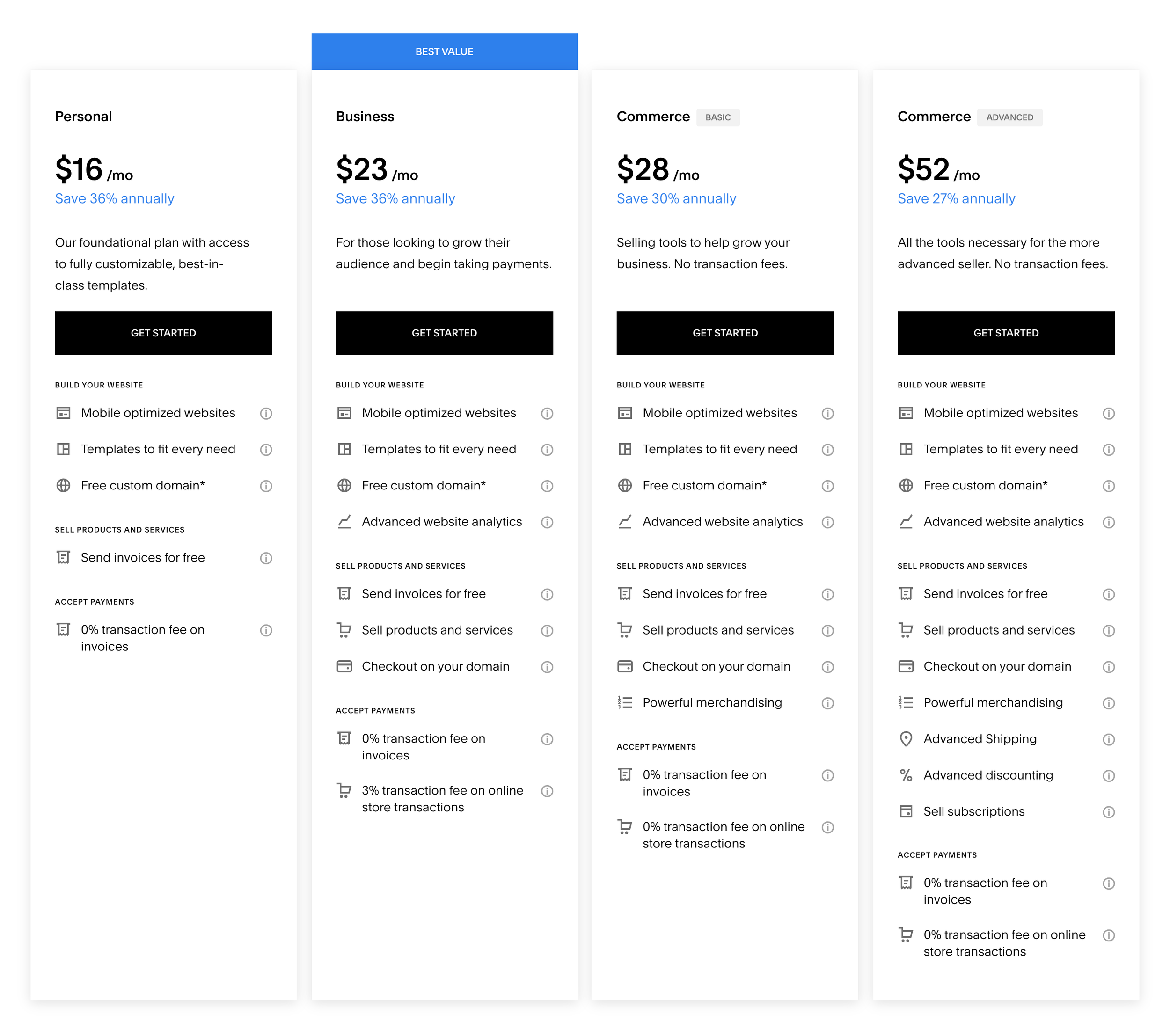
Squarespace offers a few plan tiers — Personal, Business, Commerce (Basic/Advanced) — and the right one depends on your goals.
Personal – Best for portfolios, blogs, or simple websites.
Business – Adds marketing tools, custom code injection, and analytics.
Commerce – Ideal for online stores with checkout, inventory, and sales tracking.
If you’re a small business or professional brand, I typically recommend starting with the Business Plan — it provides the flexibility most clients need without overcomplicating things.
Step 2: Pick a template
One of the biggest upgrades in Squarespace 7.1 is the new unified template system. Unlike older versions, you don’t have to worry about template families anymore — every design uses the same flexible structure.
That means you can start with any template and customize it endlessly with new sections, layouts, and styling options.
Here’s what to look for when picking one:
Choose a clean layout that fits your content structure.
Focus on functionality, not just appearance.
Remember: you can always change fonts, colors, and layouts later.
Step 3: Build your core pages
Every professional site should start with these essentials:
Home Page: Your value proposition and primary call-to-action.
About Page: Who you are, what you do, and why it matters.
Services or Products: Showcase your offerings with clarity.
Contact Page: Include a form, business hours, and social links.
You can create new pages easily from the Pages panel on the left-hand menu. Drag them into folders or navigation menus for clear structure.
Step 4: Customize your design
Now it’s time to make it yours.
Go to Design → Site Styles to adjust global elements like:
Fonts – Pick a clean, readable typeface.
Colors – Stick to 2–3 brand colors for consistency.
Spacing – Keep plenty of white space for a premium feel.
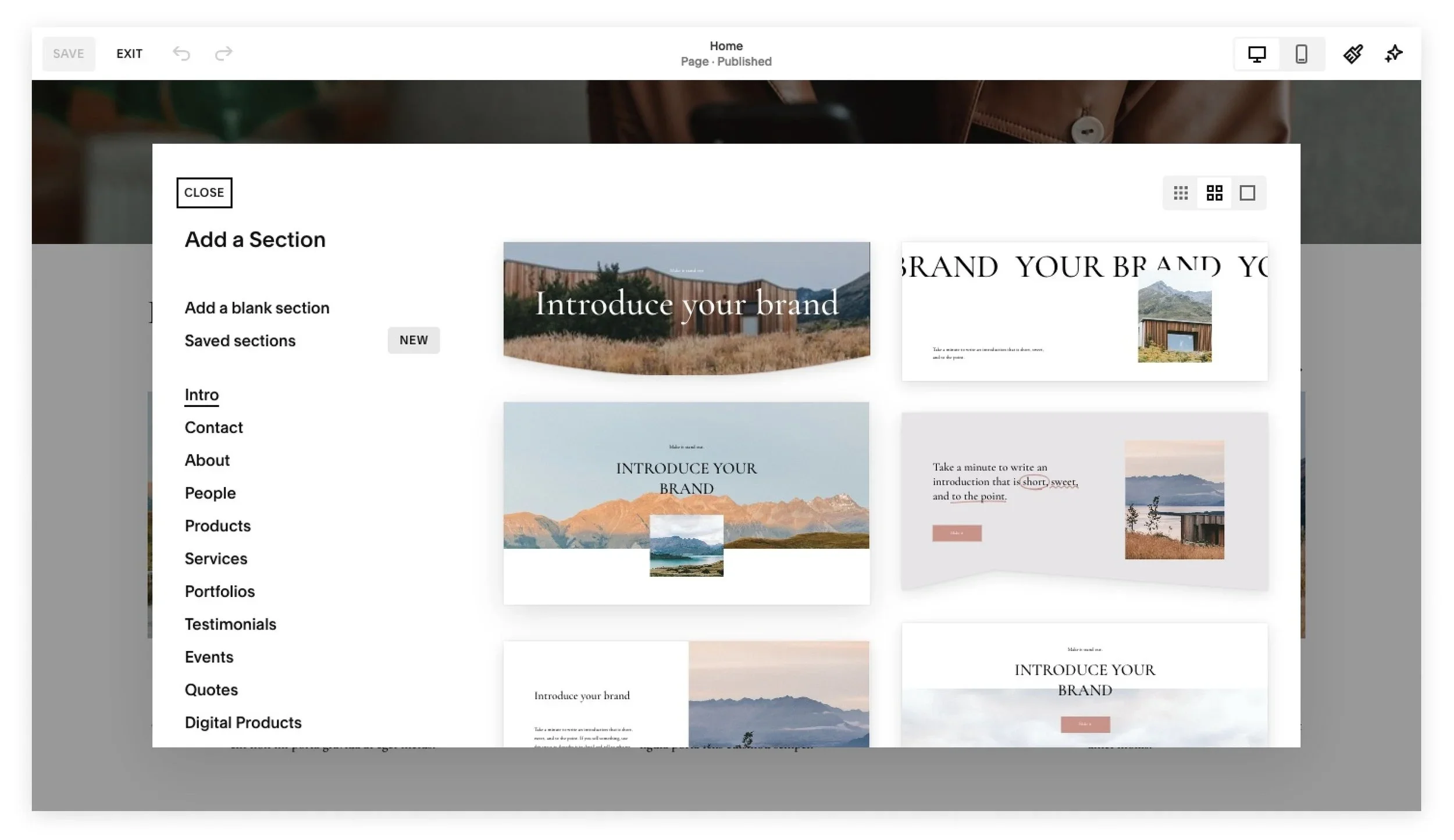
Then, click into each section to tweak images, text alignment, and button styles. Squarespace 7.1’s new section editor lets you stack, reorder, and duplicate entire content blocks in seconds — no coding required.
Pro tip: If you’re working with a designer, this stage is where custom CSS or brand styling can elevate your website from simple to stunning.
Step 5: Add SEO and analytics basics
Squarespace 7.1 includes built-in SEO settings for every page.
Add a Page Title and Description that use your main keywords.
Rename image files before uploading to include SEO-friendly names.
Connect Google Analytics or use the built-in Analytics dashboard to monitor traffic and conversions.
If you’re serious about visibility, this Squarespace 7.1 tutorial is just the beginning — ongoing optimization is key to ranking well on Google.
Step 6: Preview and publish
Before launching, preview your site on desktop, tablet, and mobile. Squarespace 7.1 automatically adjusts layouts for different screen sizes, but it’s always good to double-check spacing and button visibility.
When you’re ready, hit Publish — your domain will go live instantly, and you can continue editing anytime without downtime.

Pro tips for business owners
If you’re building your first site:
Start small — one strong page at a time.
Keep messaging simple and call-to-actions clear.
Use professional imagery — it instantly elevates your brand.
As a designer, I often see business owners overcomplicate their websites. The most effective Squarespace sites are clean, strategic, and easy to navigate.
Final thoughts
Squarespace 7.1 is designed to make professional website creation accessible to everyone — even if you’ve never built a site before. With drag-and-drop editing, all-in-one hosting, and flexible design options, you can create a stunning online presence in days, not weeks.
Whether you’re DIY-ing your first site or collaborating with a Squarespace designer, this version gives you full creative control with zero technical stress.
Squarespace 7.1 isn’t just easy — it’s efficient, scalable, and built for real businesses that want to look polished online.
Quick recap
Choose the right plan for your goals
Select any template — all are customizable
Build your core pages
Customize design and branding
Optimize SEO and publish confidently
Squarespace 7.1 is the perfect blend of simplicity and sophistication — exactly what modern businesses need to stand out online.
Flexible custom packages.
Three tiers scoped for where you are and where you're going. Not sure which fits? Book a call — we'll go over your project together and make sure you land on the right one.
Launch build
Look credible, fast.
$2,500starting from
A focused, conversion-aware website that gives you confidence sharing your link anywhere.
- Up to 4 structured pages
- 1 focused revision round
- Fully mobile-optimised
- SEO foundations included
- Launch-ready in 3 weeks
- 30 days email support
Best for businesses launching or replacing an outdated site.
Start your projectAuthority build — Most popular
Elevate your brand.
$4,000starting from
A refined, strategically designed website that positions your business as established and credible.
- Everything in Launch, plus:
- Up to 7 pages
- Custom styling & layouts
- 2 revision rounds
- Blog integration
- 5-week build timeline
- Training walkthrough
Best for growing businesses that want their site to reflect their expertise.
Start your projectScale build
No limits. Full depth.
$8,000starting from
A fully bespoke build with advanced functionality, custom code, and no artificial constraints.
- Everything in Authority, plus:
- Unlimited pages
- Unlimited custom code
- Unlimited revisions
- Plugin costs covered
- Priority support
- Complete SEO setup included
Best for established businesses investing in a long-term digital foundation.
Start your project
Mikkel Calmann
I’m Mikkel Calmann, a certified Squarespace designer and Circle Member. We’ve worked with businesses of all sizes, crafting strategic websites that look great and perform even better. If you’d like to discuss a project, feel free to email us at mikkel@typza.com or reach out to us here. You can also book a free 15-minute consultation here.