
Why your Squarespace website is not working (and how to fix it)
Is your Squarespace website not working or behaving oddly? Whether your site is down, pages won’t load, or elements look broken, this guide walks you through the most common issues — and exactly how to fix them.
Written by Mikkel Calmann
Oct 27, 2025

Why your Squarespace website might not be working
When your Squarespace website isn’t working, it can be frustrating — especially if you rely on it for business. But before panicking, know that most problems fall into a few predictable categories.
The key is to identify where the issue is happening:
Is it a platform-wide problem (Squarespace servers)?
A domain connection issue?
Or a design or code-related bug on your end?
Once you pinpoint the type of problem, fixing it becomes much easier.
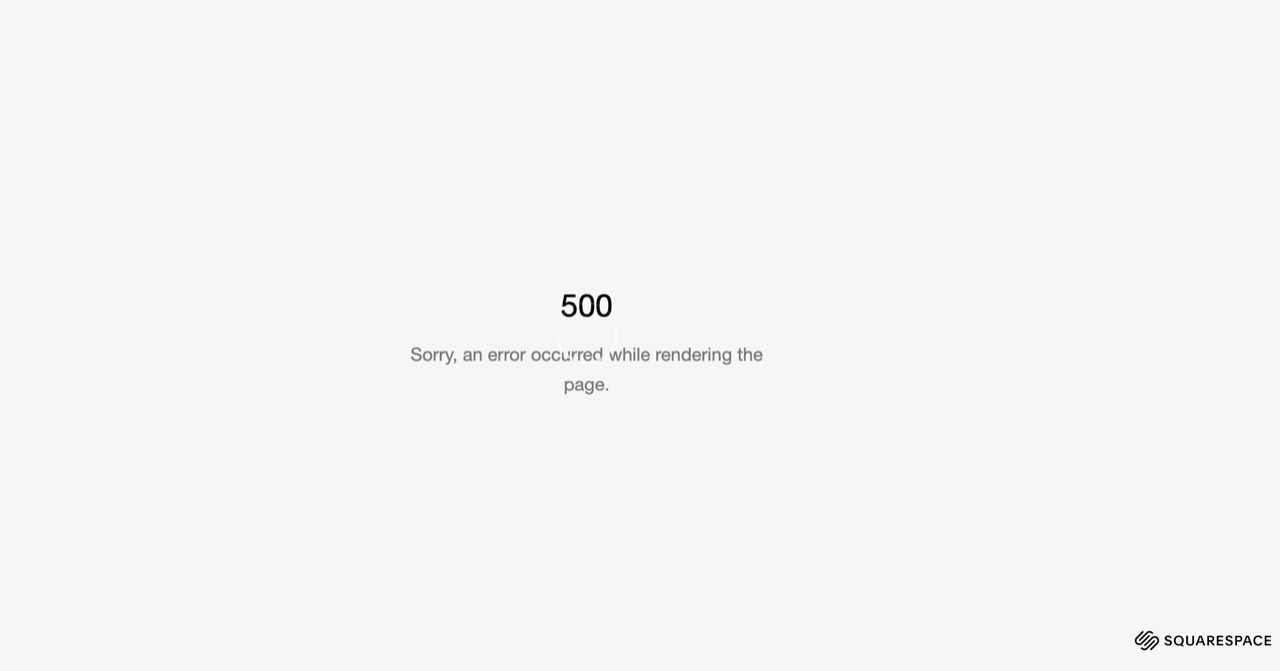
1. Check if Squarespace is down
Before changing anything, make sure it’s not a system-wide issue.
How to check:
Visit status.squarespace.com — Squarespace’s official service status page.
Check social media (like X/Twitter) for #SquarespaceDown updates.
Try loading your site on a different device or network.
If the platform is experiencing downtime, all you can do is wait until Squarespace resolves it. They usually fix outages quickly.
2. Domain connection issues
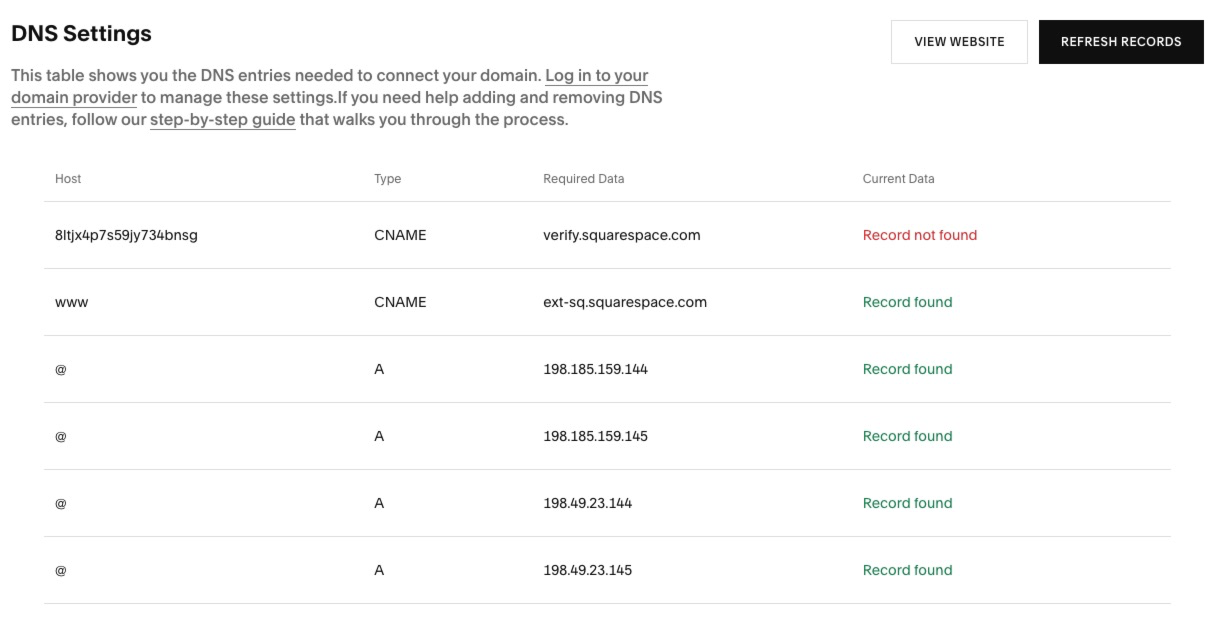
If your domain isn’t pointing correctly, your site might look like it’s down even though it’s live on Squarespace.
Fix it:
Go to Settings → Domains inside Squarespace.
Make sure your custom domain shows “Connected.”
If not, follow the on-screen prompts to reconnect or verify your DNS records.
For third-party domains (like Google Domains or GoDaddy), confirm that your A and CNAME records match Squarespace’s current requirements.
3. Browser or cache problems
Sometimes your Squarespace website not working issue isn’t the website at all — it’s your browser.
Try this:
Clear your browser cache and cookies.
Try loading the site in a private or incognito window.
Test in another browser (like Chrome, Safari, or Firefox).
If your site loads elsewhere, the problem is likely a local cache issue and not your Squarespace setup.
4. Custom code conflicts
If you’ve recently added custom HTML, CSS, or JavaScript — that’s a common culprit when your Squarespace website stops working.
How to fix:
Go to Settings → Advanced → Code Injection.
Temporarily remove any recent code additions.
Refresh your site and test again.
Even a single missing bracket or extra tag can cause sections to break or disappear. Always back up custom code before editing.
5. Expired subscription or billing issues
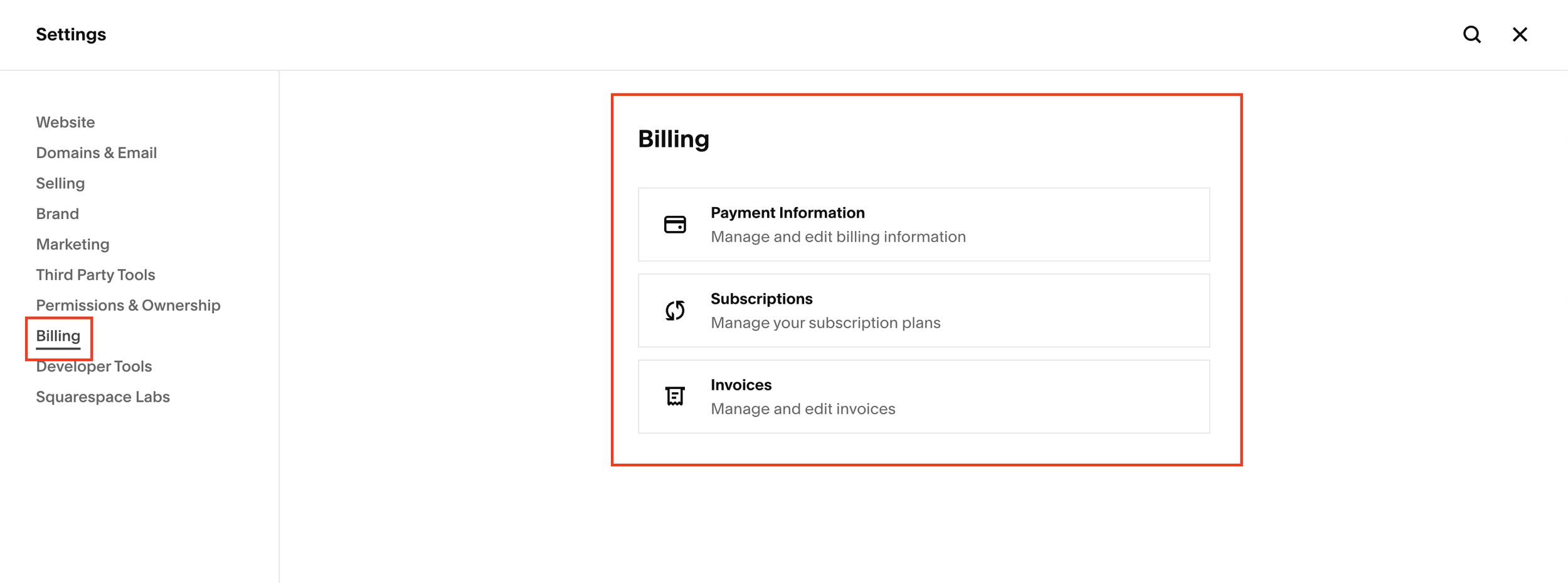
If your Squarespace site suddenly went offline, check your billing settings. Expired payment methods or lapsed subscriptions can cause your site to go into “grace period” or “deactivated” mode.
Check:
Settings → Billing & Account to confirm payment details.
Look for any alerts in your dashboard about renewal or failed payments.
Squarespace typically gives a warning before fully deactivating a site, but it’s easy to overlook.
6. Plugin or third-party integration issues
If your site uses external tools — like scheduling apps, email forms, or analytics — one of those integrations could be causing the error.
Try temporarily removing or disabling integrations one by one to isolate the problem. If the site starts working again, you’ve found your culprit.
7. Slow loading or design glitches
If your site loads slowly, sections overlap, or fonts appear broken, you may be dealing with:
Large uncompressed images
Too many custom animations
Outdated browser versions
Squarespace sites are generally fast, but heavy media files or unnecessary scripts can drag performance down. Use the Squarespace Page Speed report or Google PageSpeed Insights to identify bottlenecks.
Short recap: Fixing a Squarespace website that’s not working
When your Squarespace website is not working, check:
Squarespace status page for outages
Domain connection and DNS settings
Browser cache and local errors
Custom code or plugin conflicts
Billing and subscription status
By following these steps, you can quickly diagnose and fix most issues — without needing to contact support.
Bonus tip: Contact Squarespace support
If you’ve tried everything and your Squarespace website still isn’t working, contact Squarespace Support. They offer 24/7 chat assistance and can look into account-specific issues you can’t access directly.
Flexible custom packages.
Three tiers scoped for where you are and where you're going. Not sure which fits? Book a call — we'll go over your project together and make sure you land on the right one.
Launch build
Look credible, fast.
$2,500starting from
A focused, conversion-aware website that gives you confidence sharing your link anywhere.
- Up to 4 structured pages
- 1 focused revision round
- Fully mobile-optimised
- SEO foundations included
- Launch-ready in 3 weeks
- 30 days email support
Best for businesses launching or replacing an outdated site.
Start your projectAuthority build — Most popular
Elevate your brand.
$4,000starting from
A refined, strategically designed website that positions your business as established and credible.
- Everything in Launch, plus:
- Up to 7 pages
- Custom styling & layouts
- 2 revision rounds
- Blog integration
- 5-week build timeline
- Training walkthrough
Best for growing businesses that want their site to reflect their expertise.
Start your projectScale build
No limits. Full depth.
$8,000starting from
A fully bespoke build with advanced functionality, custom code, and no artificial constraints.
- Everything in Authority, plus:
- Unlimited pages
- Unlimited custom code
- Unlimited revisions
- Plugin costs covered
- Priority support
- Complete SEO setup included
Best for established businesses investing in a long-term digital foundation.
Start your project
Mikkel Calmann
I’m Mikkel Calmann, a certified Squarespace designer and Circle Member. We’ve worked with businesses of all sizes, crafting strategic websites that look great and perform even better. If you’d like to discuss a project, feel free to email us at mikkel@typza.com or reach out to us here. You can also book a free 15-minute consultation here.